

Campus Wi-Fi, Connecting to JAX Wireless
Select your device and read all instructions before moving to the next step.
Instructions for Students, faculty, and staff with a MyJaxState account
Detailed instructions for various operating systems are below. You will have to register each of your devices once. Once registered, that device’s access is valid for 4 years.
How to connect a Windows Device 10 or higher to Jax-Wireless
- Connect to Jax-Start_here Wi-Fi.
- A window will open and you should click on employees and students
- Click Join Now
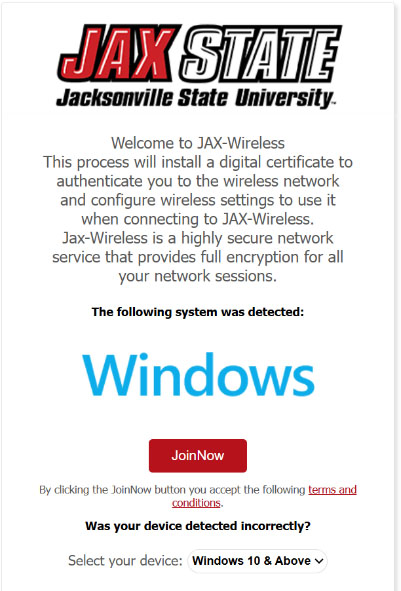
- A file will be sent to your downloads. If you see an error message when you try to download the file, click the three dots beside it and click keep. The file should turn blue.
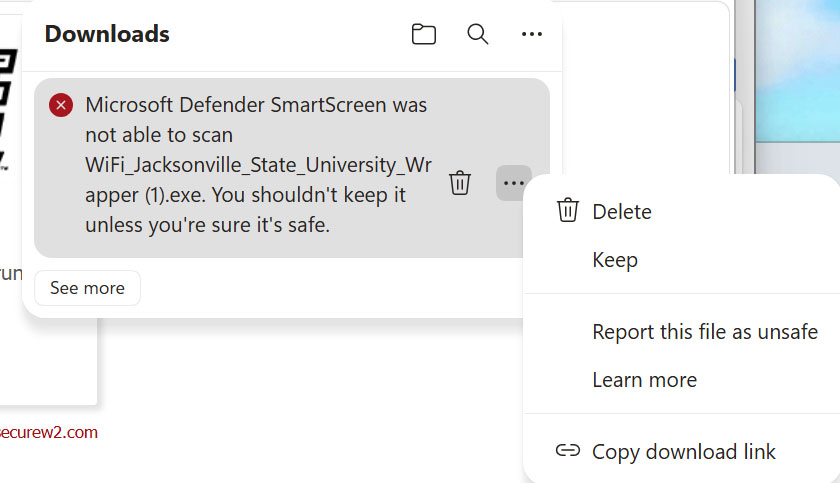
- Open the file
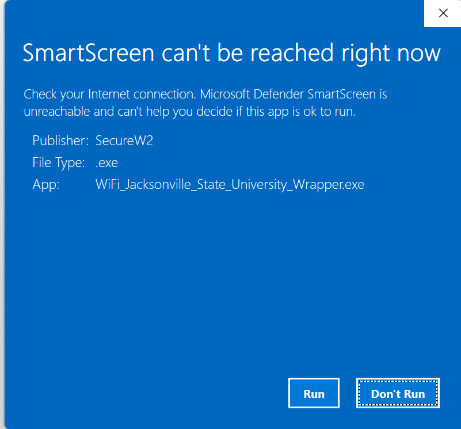
- A new window should appear click run
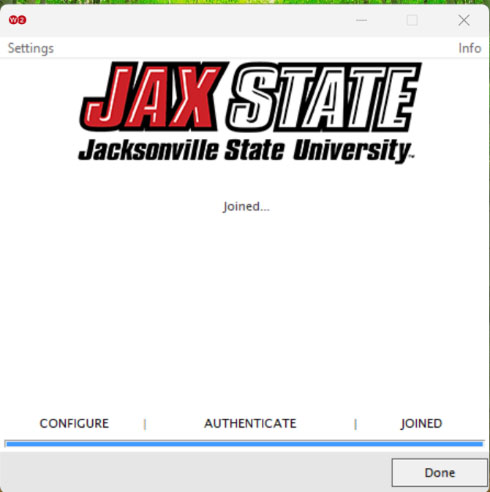
- You will see the securew2join window appear. (Sometimes it hides behind other windows so you might have to minimize other tabs to see it.)
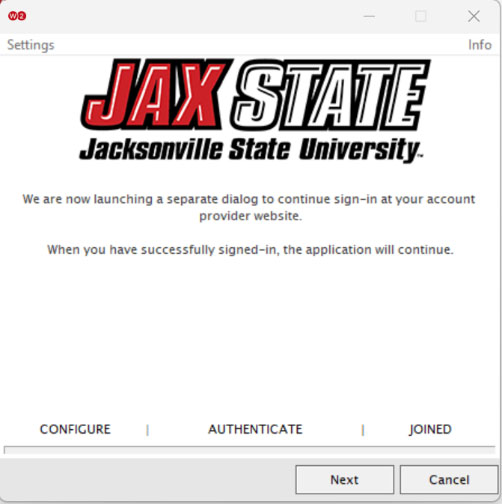
- Click next and it will then bring you to the JSU sign in page. Sign in with your Jax State email and password.
- Once you sign in you should see the small white window above again. Wait for it to finish installing.
- It should say joined when it’s complete. It might automatically connect you to JAX-Wireless or you might need to go into your Wi-Fi settings and connect.
- You're Connected!
The SecureW2 configuration program is designed for macOS Catalina (version 10.15) and above, and requires Safari to be set as the default browser. Older devices may require more advanced configuration, or use JAX-Guest instead.
How to Connect a Mac to JAX-Wireless (MacOS).
Step 1 — Connect to Jax-Starthere WiFi
Step 2 — Select Student or Guest
Step 3 — Select JoinNow
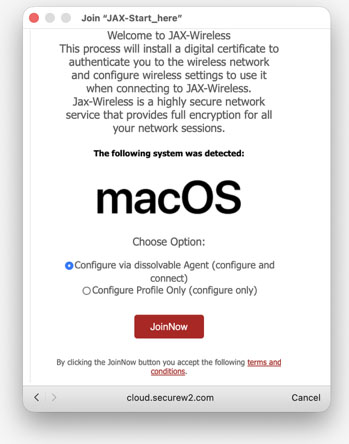
- The Welcome to JAX-Wireless screen should appear.
- Click JoinNow.
- When prompted, click Allow to let the browser open.
- ( You must have Safari as the default browser for this step– go to System Settings >Desktop & Dock> Default web browser to change)
Step 4 – Download the .DMG file
The SecureW2 Join Now .DMG file will download.

- CLOSE THE WINDOW
- Go to your Downloads icon or folder.
- Double-click WiFi_JoinNow_Wrapper.dmg file
- Your Mac may ask for permission to make changes to macOS.
- Click Allow.
(IF AT ANY POINT YOU ARE PROMPTED FOR A KEYCHAIN PASSWORD, THIS WILL BE THE COMPUTER PASSWORD.)
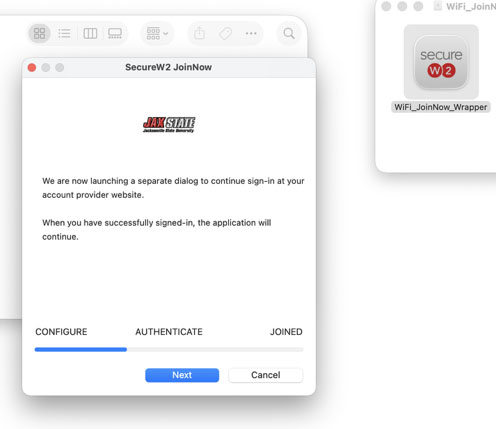
You will see the SecureW2Join now application appear – click Next to authenticate:
(Sometimes this screen hides behind the others so you may have to exit out or minimize the windows to see it.)
Step 5 - Authenticate
- The JaxState sign-in screen should appear.
- Enter your Jaxstate email address and JaxState password.
Once signed in it should pop up that the configuration profile is being downloaded – wait till it is done.
Exit out of that screen.
Step 6 — Install the Downloaded Profile
- Once you see Profile Downloaded, go to Settings.
- Look directly underneath your Apple ID for Profile Downloaded.
- Click or double click Profile Downloaded.
- Click Install.
- The SecureW2 application should continue to enroll.
- Follow the remaining prompts.
Step 7 — Finish Connecting
- Your Mac should tell you when profile the installation is complete.
- Once installation is complete, you should automatically be connected to JAX-Wireless.
The configuration profile provided by SecureW2 is designed for iOS 16 and above, and requires Safari to be set as the default browser.
- Tap Sign In.
- A Microsoft prompt will appear. Sign in with your MyJaxState account and perform multi-factor authentication if prompted.
- Tap Join Now. You will be asked to download a configuration profile. Tap Allow.
- If a "Choose a Device" prompt appears, select the device that requires the JAX Wireless network's connection.
- Navigate to the Settings app, and tap on the new section titled Profile Downloaded.
- Tap Install in the upper-right corner and enter your device's passcode, then tap Install again.
- You will be prompted to enter your MyJaxState password.
- Once you see "Profile Installed" tap Done in the upper-right corner.
- You can now select the JAX-Wireless network in Wi-Fi settings, and your device will be able to connect without prompting.
The SecureW2 configuration application requires a version of Android that is 8 (Oreo) or newer. Devices that are not able to update to at least Android 10 may require additional configuration.
- Click the Download button under Step 1, or install the SecureW2 JoinNow application from the Google Play Store.
- Open the SecureW2 JoinNow application.
- A Microsoft prompt will appear. Sign in with your MyJaxState email address, and perform multi-factor authentication if prompted.
- Depending on your Android version, you may see a prompt about wireless networks suggested by JoinNow MultiOS. Accept this prompt.
- If you do not see this prompt, you may need to navigate to your Settings app and select the 'JAX-Wireless' network manually.
We strongly encourage ChromeBook users to switch to a different device if possible as Chromebooks do not work efficiently with our systems or courses at Jax State. Please see our Laptop Policy.
Step 1 - Connect to the Jax-Start-Here Wifi
Step 2 - It will ask you to install the Chrome Extension
*CLOSE OUT OF THE SCREEN - IF NOT YOU WILL GET THIS ERROR:

Step 3 - Open up Google Chrome and type in wireless.jsu.edu
Step 4 - Select Student or Guest
Step 5 - A Screen should pop up asking you to install the Chrome extension - Click Install or it may download it automatically.

Step 6 - Add extension to Chrome
Step 5 - Go back to the first tab that was open for wireless.jsu.edu, you will see the screen that asks to sign in.
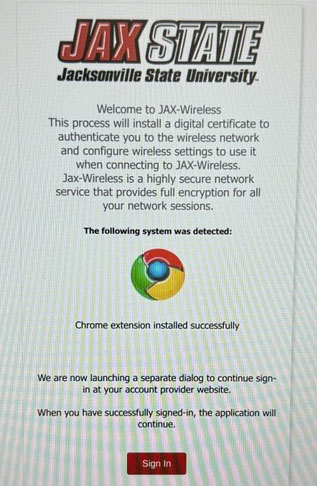
Step 6 - Select Sign in and Put in your JaxState email and password.
Step 7 - Install App From Google Play Store
You will see a screen that detects your OS and asks you to install a certificate - YOU MUST CHANGE THE DETECTED OS FROM CHROME OS TO ANDROID)
Then you should see the option to download the app to Google Play Store
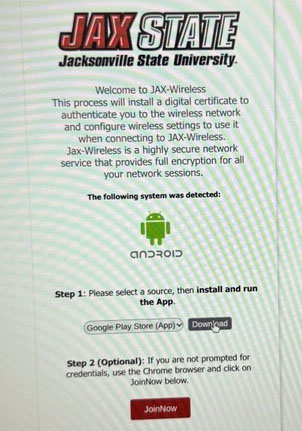
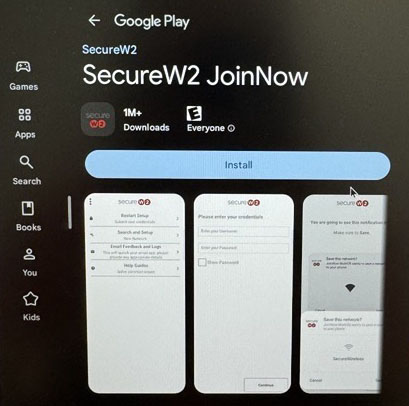
Hit “Download” and then it should download and open up in Google Play Store -Click “Install”
Once it downloads, you can go back to the tab and select “Join Now”
Step 8 - Re-authenticate
You will be asked to sign in again with your JaxState email and password.
Step 9
You should then see the SecureW2 app open and start to authenticate - it will ask if you want to save the network and select “Save”
Congratulations, you should be connected!
Due to the wide variety and technical nature of Linux distributions and networking utilities, it is not possible for us to provide thorough testing or support for Linux devices. If the configuration script fails for you, you may need to use your distro's native networking tools to configure JAX Wireless manually or consider a different operating system for JAX State business.
- Make sure that mkdir, rm, tar, gzip, pwd, sed, readlink, and python are available as commands.
- Click the Join Now button. Your browser will download a file named SecureW2_JoinNow.run
- Execute SecureW2_JoinNow.run as a shell script, i.e. with a command like sh ./SecureW2_JoinNow.run
- The script will unpack an archive and run a Python program that opens a Microsoft prompt. Sign in with your MyJaxState email address, and perform multi-factor authentication if prompted.
- The program will then use your credentials to perform network configuration automatically.
- Note - If you have issues connecting, please look at your network manager. We have seen success with "wpa_supplicant", while others might cause some issues.
JAX IOT refers to devices that connect to the internet or network but are not typically computers, phones, or tablets.
To get your device connected, you will need the device's MAC Address. The MAC Address is a unique identifier for your device's network connection. Use the MAC Address to complete the IoT Network Request Form. Once the device has been approved and added to the network, you can connect it to the JAX IoT Network.
Instructions for Registered Guest Access
Guest access is available to visitors to Jax State. If already on campus, connect through our registration portal, JAX-Start_here, and follow the Guest Access link.
- Select Open Guest Access
- On the Open Guest Access login page select to Create an account.
- Enter all required information. Your email will be your username.
- Click Register.
- You will have your username and password presented to you. They will also be emailed to your registered address.
- You can now select the JAX-Guest from your wireless connections and when prompted enter your username (email address) and password. If you receive any certificate warnings, it is safe to accept them.
About JAX Wireless
JAX Wireless is a secure campus wide Wi-Fi network that is available to all personal owned devices used by faculty, staff, and students that can be used for internet access. Individuals that do not have a MyJaxState account can register and connect to the JAX-Guest network for internet access. JAX Wireless is operated and maintained by the Department of IT Infrastructure. If you have any questions about the service or issues connecting, please contact the Technology Support Center.
Wi-Fi Onboarding for JAX Wireless Access
In order to streamline the process of connecting, we provide a piece of software that automatically configures your device to connect to the JAX Wireless network. This can be done before arriving on campus or while connected to the JAX-Start_here wireless network.